At The Wall
With the At The Wall button you model wellbore failure using either compressive or tensile stresses. The results are visualized in a dedicated view.
Specify Input Data
The first selection you must make is whether you want to model wellbore failure using compressive or tensile stresses. If you did not select any option at the bottom of the Advanced Mode form, you can already calculate stresses and visualize the results in the Elasticity - At the Wall View.
Specify Bedding Planes
The options under Specify Bedding Planes are only enabled if you have checked the Bedding Planes option on the Advanced Mode form.
One plane of weakness - Use this option to predict shear failure of discrete bedding or fracture planes close to the well. Apart from the selections you have made on the Model Definition form, the input for the calculations is taken from the Bedding Planes tab on the Advanced Mode form. The approach used is to model the strength of the intact rock and that of the weakness planes independently. It is straightforward to extend this model to study the likelihood of slip along fractures or bedding planes intersecting the well.
When evaluating slip on a single fracture set, a further extension is to consider the effect of changing the pressure of fluid inside the fracture. If the fracture is in communication with the well, then the pressure could take any value between the original pore pressure and the pressure of the drilling mud. For an overbalanced well, this analysis is useful to evaluate the benefit of fluid loss additives as an alternative to changing the mud weight in a fractured rock or fault zone. The values for the parameters that are used for the calculations, Bedding Dip, Bedding Dip Azimuth, Bedding Cohesion and Sliding Friction Coefficient are taken from the Advanced Mode form.
Orthotropic strength - Use this option to evaluate failure when the material properties of the rock that is being drilled differ in perpendicular directions. Failure of material with orthotropic rock strength is similar to failure of anisotropic material, and is controlled by the isotropic strength parameters as well as the amount of anisotropy determined by the values of A and B. When you have selected this option, you have to define the A and B parameters. You do this on the Orthotropic Strength form that is opened via the icon  or via Bedding Planes > Orthotropic Strength.
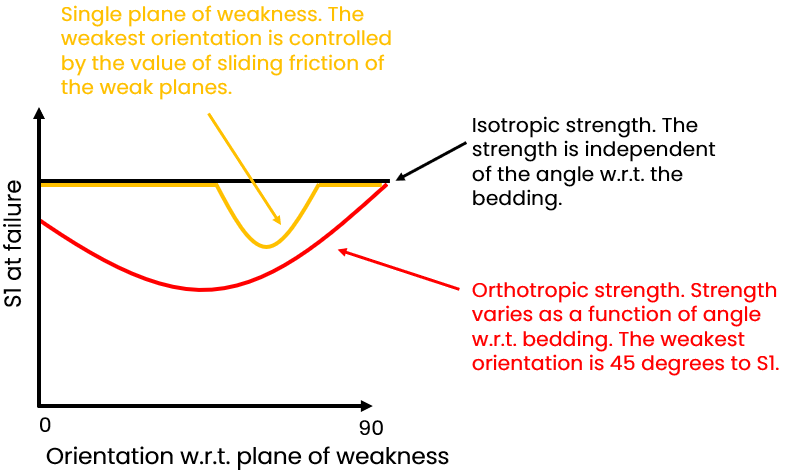
Schematic example of strength (expressed as the maximum stress S1 at failure of the sample) as a function of angle with respect to the weakness planes for both options. One plane of weakness is drawn in orange, orthotropic strength in red click to enlarge
When you have made the selections, and if necessary filled in values for A and B parameters, click (Re)Calculate to start the calculations. The intrinsic load-bearing capacity of the rock is calculated as a function of angle with respect to the plane of weakness.
Click Show to open the dedicated Elasticity at the Wall view to display the results of the at the wall computation. This view is changing depending on the selections you have made on the At The Wall form.
The lock icon on the form can have different colors and states:
|
|
Open When the lock is green and in the open position, the associated algorithm is automatically executed when a change is made to the data’s input. Current status of output data is 'up-to-date'. |
|
|
Locked, No Changes When the lock is blue and in the locked position, the associated algorithm is not updated when a change is made to the data’s input. Current status of output data is 'up-to-date'. |
|
|
Open, Red When the lock is red and in the open position, the associated algorithm is automatically executed when a change is made to the data's input. Current status of output data is 'not-up-to-date', meaning the algorithm was already executed but output data was not calculated/updated due to some errors or lack of input data. |
|
|
Locked, Red When the lock is red and in the locked position, the associated algorithm is not updated when a change is made to the data's input. Current status of output data is 'not-up-to-date'. To apply the updates, you need to click the associated (Re)Calculation button. |


